Tickets
The ticket list is home base for your team.
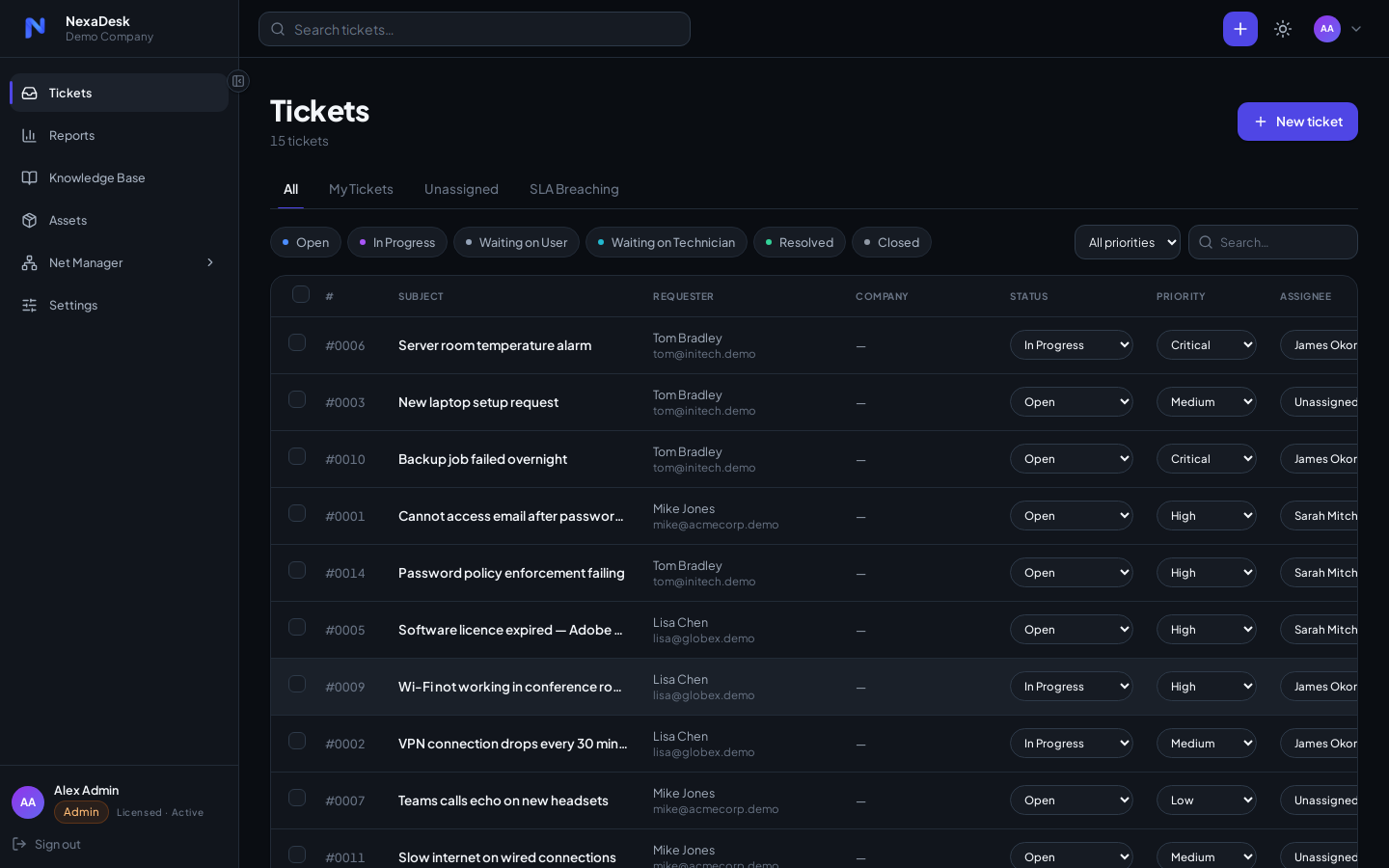
The list view
- Tabs: All, My Tickets, Unassigned, and SLA Breaching — the last one is your morning triage view.
- Status filter chips: Open, In Progress, Waiting on User, Waiting on Technician, Resolved, Closed.
- Priority filter and free-text search narrow things further; the global search bar up top finds tickets from anywhere in the app.
- Inline editing: change status, priority, and assignee straight from the list — no need to open the ticket.
- Bulk actions: tick multiple rows to act on them together.
Ticket lifecycle
Open → In Progress → Resolved → Closed
         ↕
  Waiting on User / Waiting on Technician
Use the Waiting states to pause SLA clocks appropriately and signal whose court the ball is in. Invalid transitions are rejected by the server, so the lifecycle stays clean.
Creating a ticket
Staff create tickets with the New ticket button; requesters use the portal or simply email your connected support address.
While you type a subject, NexaDesk automatically suggests matching Knowledge Base articles — often the requester's answer already exists, and one click links or shares it.
Working a ticket
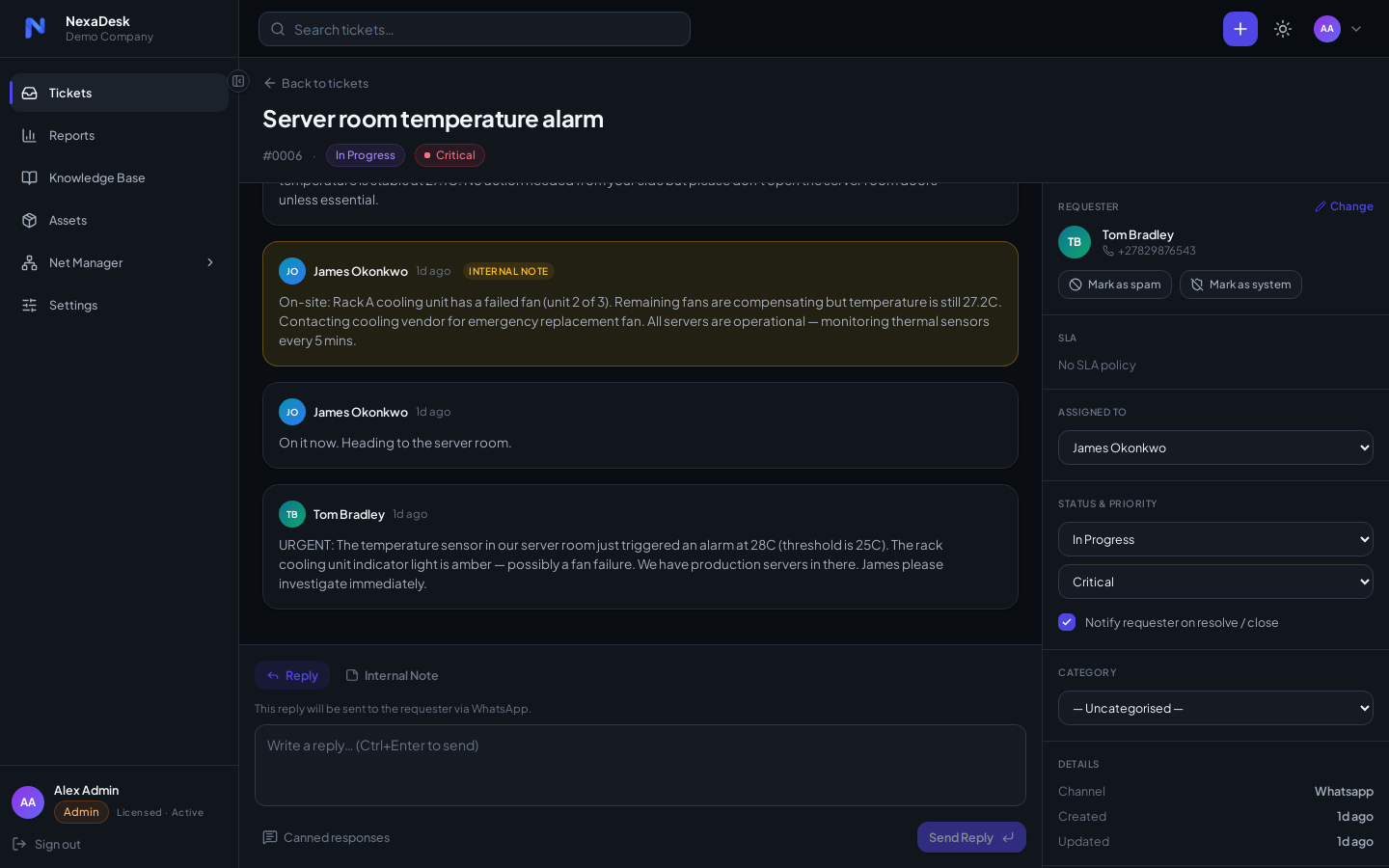
The detail view gives you:
- Conversation thread — public replies (emailed to the requester when a channel is connected) and internal notes visible only to staff.
- Properties panel — status, priority, assignee, category, company, requester.
- SLA indicators — response/resolution targets and time remaining.
- Audit history — every field change is recorded, who and when.
- Canned responses — insert your team's saved replies.
- Linked KB articles — attach the article that solves this class of problem.
CSAT surveys
When a ticket is resolved, the requester can receive a satisfaction survey link. Links are signed, single-use tokens — results feed the Reports dashboard.